Heliciel in your AI assistant
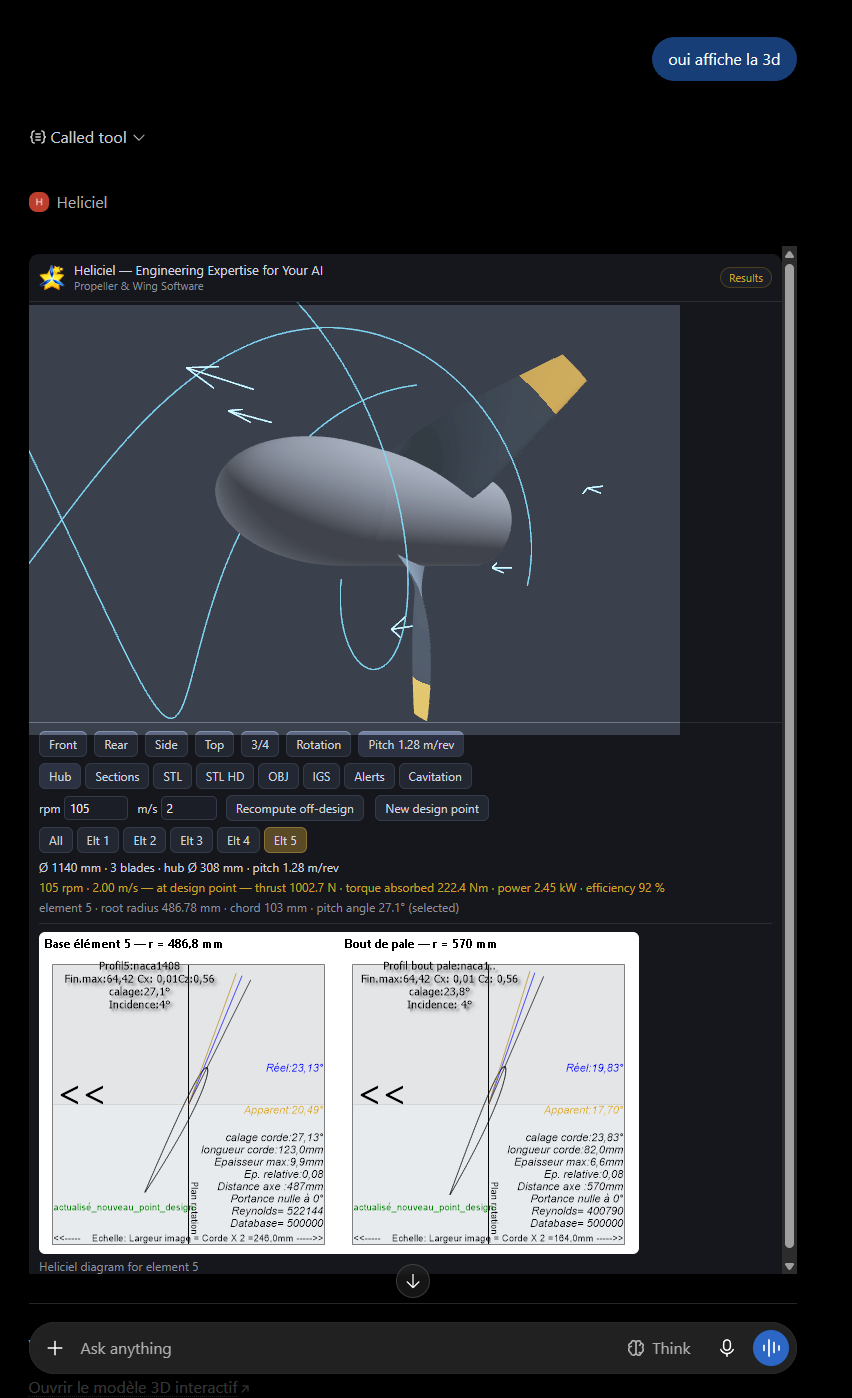
Heliciel is a propeller, wing and turbine engineering software. Its MCP
connector lets an AI assistant (Claude, ChatGPT, Le Chat, and any MCP-capable client)
drive a real Heliciel instance: every number your assistant gives you then comes from a
BEM (Blade Element Momentum) computation, not from the assistant's general
knowledge — and the geometry it designs is exportable for manufacturing (STL, IGES, OBJ).
1. What you need
- A Heliciel MCP pass (day, week or month), purchased on https://www.mecaflux.com/suite/en/pass_mcp.php. Your pass page shows your
access and its remaining duration.
- An AI assistant that supports MCP connectors (sometimes called
« connectors », « apps » or
« plugins » depending on the client).
2. Connect
The server address is the same for everyone:
https://mcp.heliciel.com/mcp
In your assistant, look for the feature named « connector »
or « MCP » (in ChatGPT it lives in the developer/apps
settings; in Claude under connectors; in Le Chat under connectors), add a custom connector with
the address above, and follow the authorization: a Heliciel page opens and asks for
your pass key. Paste either the key itself or the full access address shown on
your pass page — both are accepted. That is all: no token to copy into URLs.
Your pass page on mecaflux.com also offers one-click setup buttons for some clients
(Cursor, VS Code) and ready-to-paste configuration blocks for the others.
On a phone? Do this first connection from a computer —
web or desktop application. Installing connectors from the mobile apps is still in beta. Once
installed, the connector follows your account and works everywhere, iPhone and Android included:
you can then design a propeller from your phone.
And do not ask the assistant to connect itself: adding a connector is a settings action,
reserved to you. Ask it to connect to Heliciel and it will rightly answer that it cannot —
that is a boundary, not a failure.
3. First steps — example prompts
Just talk to your assistant. A few requests that work well:
- « I have an 8 kg drone with 4 motors and a 150 % thrust margin.
Size the propellers. »
- « Design an aircraft propeller: 50 kW, 120 km/h, max diameter
1.5 m, 2 blades. »
- « Load a wind turbine, 3 blades, 4 m diameter, 8 m/s wind —
what power can I harvest? »
- « Design a Kaplan runner for 5 m³/s and a 4 m net head, then
show me the efficiency curve. »
- « Compare 2 vs 3 blades and show me the best one in 3D. »
The assistant will ask you for the missing parameters (diameter, speed, regime…)
rather than assume them: the levers of a design — blade count, diameter, chord law,
regime — are your choices, and Heliciel refuses to invent them.
4. What to expect
- Real numbers. Thrust, torque, power, efficiency, cavitation, tip Mach:
everything is computed by Heliciel and reported with its own design alerts. A computation that
fails says so — it is never replaced by a guess.
- An interactive 3D view. On clients that support embedded apps, the blade
can be rotated in the conversation, element by element; elsewhere you get an image plus a link
to a standalone 3D viewer. Every image of results comes from Heliciel itself.
- Exports. STL (3D printing, CFD), IGES (CAD), OBJ, blade sections (JSON),
analysis tables (CSV). Download links are valid for 60 minutes; your projects
are not archived after the session (see the
privacy policy).
- One computation at a time. Long searches (design-point RPM search, sweeps,
genetic optimization) can take minutes; the assistant can query their progress while they
run.
5. Troubleshooting
- « 401 » or authentication error: your pass has
expired, or the key was mistyped. Check the remaining duration on your pass page.
- The assistant does not see the new tools: assistants cache the tool list.
Look for the « refresh » action on the connector in your
assistant's settings, then start a new conversation.
- A result looks like a screenshot but contains no Heliciel link: ask the
assistant whether the image came from the Heliciel visualiser tool. Genuine results always
can be traced to a tool call.
- Anything else: contact@mecaflux.com.
Privacy and cookies policy |
Terms of sale |
Home
|
 Global site map
 Mecaflux.com
 Slideshow software screens
 tutorials
 Download / Buy mecaflux
 Terms and conditions
 Major loss
 Minor loss
 Hydraulic Aeraulic pipes
  Pumps
Pumps Turbines
 Propellers
 Lift
Lift Drag
Drag Hydrodynamics
 Aerodynamics
 Site map
 Links
Links Examples internal flows
 Examples external flows
 Heliciel.com
 Table of Contents
 Heliciel software
 Aircraft Propellers
 Boat Propellers
 Wind Turbines
 Fans
Fans Turbines and tidal turbines
 Wings and hydrofoils
 Calculation methods propeller and wing
 Heliciel Site map
 Aero/Hydro Dynamics
 Propellers and turbines
 HELICIEL Software
 Heliciel software tutorials
 how to use software
 Blade or wing frame
 Specific functions and Case
 software discovery Video
  3D engine
 Purchases and downloads today
 references
 Tutorials Mecaflux Pro3D
 Tutorials Heliciel PRO CFD
 Mecaflux Store
 Compare software functions
 Quotes, Orders, Payment Methods
 Forum
Forum project technical studies
 English
 Francais

 :
:









































































.jpg)